Guide
How to back up iCloud Photos to an external drive on a Mac
iCloud Photos keeps your library in sync, but it isn’t a separate copy, and a big library may not fit on your Mac at all. “I have a 1.2T photo library. Carrying that around on my MacBook requires an $800 upgrade,” one reader wrote on Hacker News in January 2026. A drive you own fixes both.
This guide shows the free way first, with Photos, then how Hardcopy does it.
Is iCloud Photos a backup?
No. iCloud Photos keeps the same library on every device signed in to your account. That is sync, not backup. In the words of iCloud support, “when you use iCloud Photos and delete a photo or video on one device, it also deletes on all other devices” (support.apple.com/108922, published 14 September 2026, read 20 November 2026). A mistake, a lost account or a bad sync reaches every copy at once.
A backup is a separate copy that a change on your phone can’t touch. For photos, that means the originals on a drive you own.
Doesn’t Time Machine already back up my photos?
Only what is on the Mac’s disk. With Optimize Mac Storage on (Photos › Settings › iCloud), Photos keeps “smaller versions of your photos on your Mac when storage space is limited” and the originals in iCloud (Optimize storage in Photos on Mac, read 20 November 2026), so Time Machine copies the smaller versions.
How to back up iCloud Photos with Optimize Mac Storage on shows how to tell what your Mac holds and four ways to get every original onto a drive.
How do I move photos from iCloud to an external drive for free?
You can do it with Photos alone. It is slow for a big library, but it works.
- Connect the drive and check its format. In Finder, select the drive and choose File › Get Info. APFS or Mac OS Extended is best for a Mac. exFAT works too, and also opens on Windows.
- Check you have room. On your iPhone open Settings, tap your name, then iCloud, and note how much Photos uses. Your drive needs at least that much free space.
- Choose a batch. A year at a time is easiest to check. In Photos, choose File › New Smart Album, set “Date Captured” “is in the range” for one year, and select all in that album.
- Export the originals. Choose File › Export › Export Unmodified Original. Choose your drive as the destination. This exports each photo as it was shot, and a Live Photo as a photo and a short video.
- Let Photos download. With Optimize Mac Storage on, Photos fetches each original from iCloud before writing it. This uses space on your Mac’s own disk while it works, which is another reason to go a year at a time.
- Export your edits, if you want them. Export Unmodified Original leaves edits out. For the edited versions, select the same photos and choose File › Export › Export Photos into a separate folder.
- Check the batch. Compare the count in Photos with the files in Finder (a Live Photo is two files). Open a few photos from the start, middle and end of the year.
- Copy it to a second drive. One drive is one point of failure.
Repeat for each year.
Other free ways
- iCloud.com. At iCloud.com/photos you can select up to 1,000 photos or videos at a time and download them, choosing Unmodified Originals under More Download Options (support.apple.com/111762). It works on any computer, including a PC, but a library of 30,000 items is 30 batches, and the files come without albums.
- A transfer to Google Photos. At Apple’s Data & Privacy page you can ask Apple to send a copy of your iCloud Photos to Google Photos. It takes three to seven days, sometimes up to 30; it needs Advanced Data Protection turned off and enough Google storage; and shared albums, smart albums and Live Photos don’t transfer (support.apple.com/118257, published 9 October 2026, read 20 November 2026). It gives you a second copy in another company’s cloud, not one on your own drive.
What this keeps, and what it leaves behind
The export gives you the original files. That is the part that matters most, and once it is on your drive, nothing that happens in iCloud can change it. What it doesn’t give you:
- Your albums. The export is one folder per batch. Exporting album by album gives you album folders, but each photo is then stored once per album it is in, which uses more space.
- Favourites and other details from Photos. These live in the Photos library, not in the files. (The date and location your camera recorded do stay inside each original.)
- Proof. Counts and spot checks find a missing year. They don’t prove that every file on the drive matches what was in iCloud.
None of this matters if all you want is the pictures. It matters a lot if you plan to delete the originals from iCloud afterwards.
How does Hardcopy back up iCloud Photos to an external drive?
Hardcopy is a Mac app that keeps a checked copy of your whole iCloud Photos library on a drive you own. After you activate a licence, setup asks for Photos access and a folder on your drive, then whether to back up automatically (off unless you choose), then Back Up Now or Later.
- It copies everything. For each item it keeps the original, the edited version and Photos’ edit data when there is one, the video half of a Live Photo, any RAW file, every frame of a burst, and the files only Photos can use. When the Mac holds only small versions, Photos downloads the originals from iCloud for it.
- It protects your Mac’s disk. Before each item, Hardcopy checks the Mac’s free space. Below 10 GB it pauses, looks again every 30 seconds, and carries on when there is room.
- It proves each file. While Photos hands over a file, Hardcopy computes the SHA-256 hash of the bytes it receives. Once the file is on the drive, it reads it back and hashes it again. A copy that doesn’t match is thrown away, listed, and copied again on the next run.
- It keeps up. Later runs copy only what is new, edited, or failed last time. You can run it by hand, or turn on a daily or weekly schedule, or a backup whenever the drive is plugged in.
How the backup is laid out
Plain folders that any computer can open:
Photos/
  2026/
    11/
      IMG_4021.HEIC
      IMG_4021.HEIC.xmp        (its details)
      IMG_4021 (edited).jpg
      IMG_4021.AAE             (edit data)
      IMG_4022.HEIC
      IMG_4022.MOV             (Live Photo video)
Restore Data/                  (files only Photos can use)
  2026/
    11/
      IMG_4021 (adjustment base photo).JPG
Albums/
  Trips/
    Iceland/
IMG_4021.HEIC (the same file, no extra space)- Year and month folders, with the file names Photos gives them. Items with no date go in
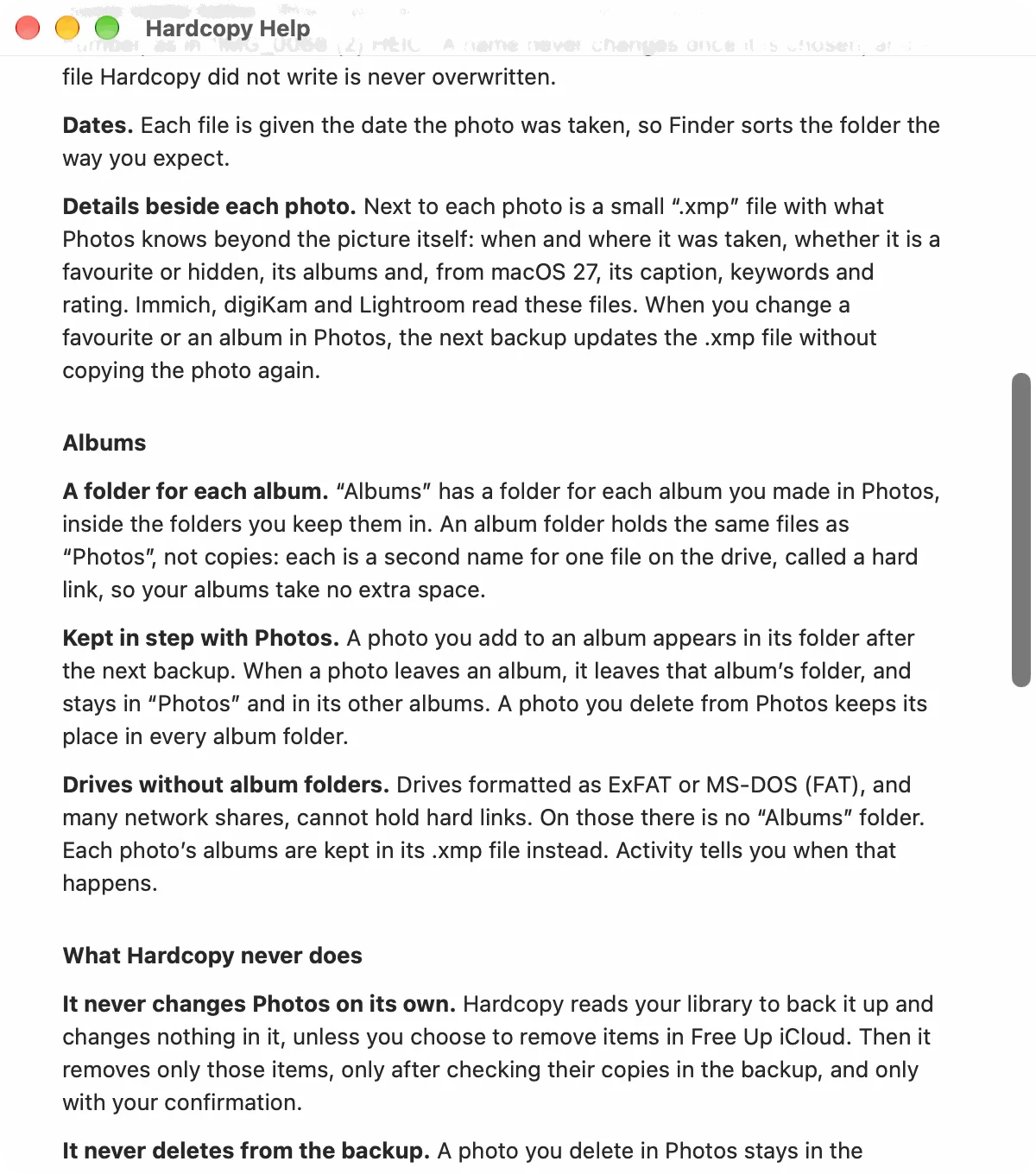
Undated. - Dated by when the photo was taken. Each file, and its .xmp file, gets the photo’s date as its creation and modification date, so Finder sorts it the way you expect.
- Albums as folders, without extra space.
Albums/mirrors your albums and the folders you keep them in. Each album folder holds hard links: second names for the same file on the drive. Drives formatted as exFAT or MS-DOS (FAT), and many network shares, can’t hold hard links, so they get noAlbums/folder; the album names are still in the .xmp files. - Edit data beside each edited photo.
IMG_4021.AAEis Photos’ own record of how you edited it.Restore Data/holds the files only Photos can use, such as the picture an edit starts from, in the same year and month folders. Hardcopy’s Restore hands both back to Photos; album folders never include them. - Details beside each photo. An XMP sidecar such as
IMG_4021.HEIC.xmpholds the date and time taken, the location, favourite (as a 5-star rating), hidden, and the albums it is in. On macOS 27 it also holds the caption, keywords and rating. Immich, digiKam and Lightroom read these files.
Checking the whole backup later
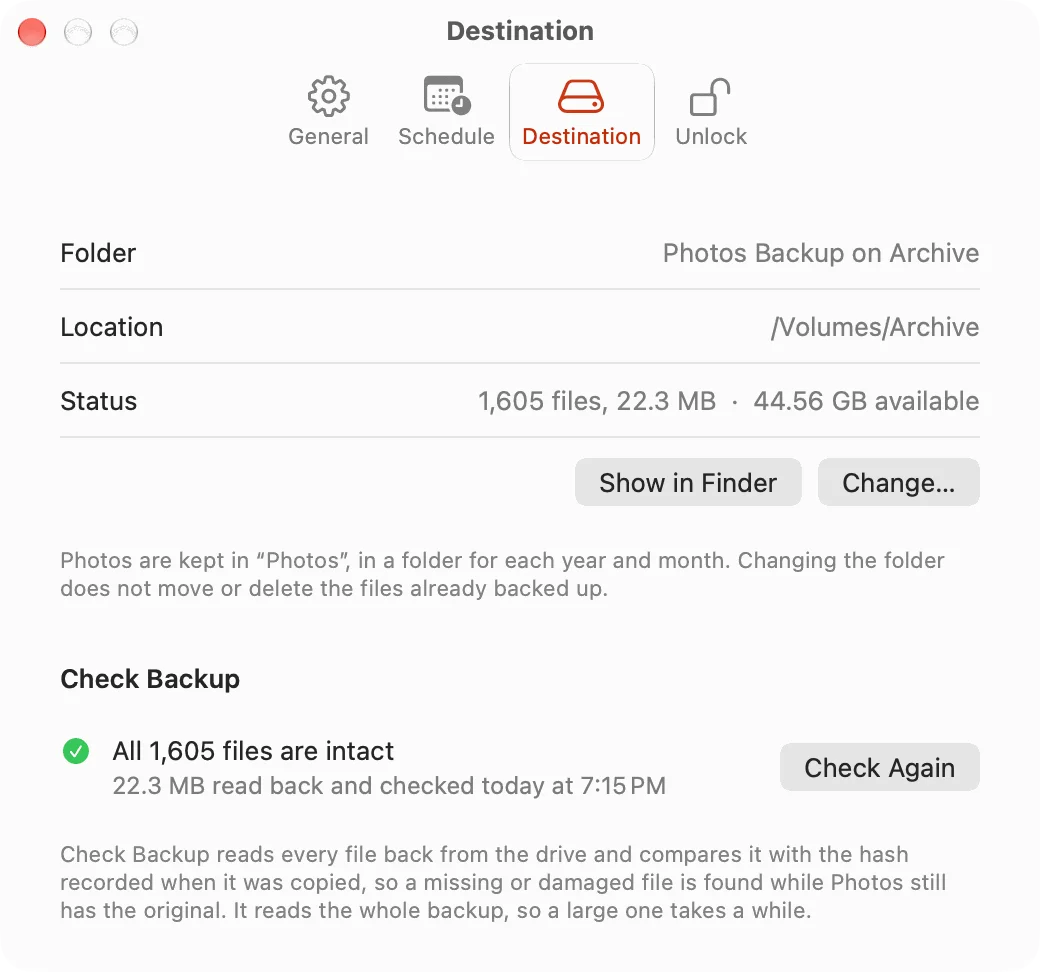
Drives fail quietly. Check Backup (File menu, or Settings › Destination) reads every file back from the drive and compares it with the hash recorded when it was copied. It names each problem (missing, wrong size, damaged) and offers to copy those files again while Photos still has the originals.
What Hardcopy can’t keep
So you know before you rely on it:
- People and their names. macOS doesn’t let apps read them.
- Captions and keywords before macOS 27, for the same reason.
- Shared Albums and iCloud Drive. Hardcopy backs up your Photos library only.
- A restore into a Shared Library. Hardcopy’s Restore puts items back into your own library only.
Full details are on how it works.
Which apps back up iCloud Photos to an external drive?
Besides exporting by hand, the main Mac options on 16 November 2026 were Parachute Backup ($19.99, the most rated, also backs up iCloud Drive and Shared Albums; compared), Photos Backup Anywhere ($9.99, restores into Photos; compared), Photos Takeout (free to try; exporting costs $49.99 once or $8.99 a month; compared), BackiGo, CloudMonitor, the free command-line tools icloudpd and osxphotos, and Hardcopy ($14.99, the one built to remove photos from iCloud afterwards). The full comparison puts them in one table, with what each does best.
Which drive should I use?
Any drive with room for your originals, plus growth. A few practical points:
- APFS or Mac OS Extended if the drive is only for your Mac. Hardcopy can then make album folders.
- exFAT if you also need the drive on Windows. Your photos and .xmp files are all there; only the
Albums/folder is left out. - A network share (NAS) works as a destination. Many can’t hold hard links, so expect no
Albums/folder there. - Two drives if you plan to delete from iCloud later, so the backup is never the only copy.
- Not iCloud Drive. A backup there uses the same iCloud storage you are paying for, and Hardcopy refuses it as the backup folder (Desktop and Documents too, when iCloud Drive keeps them). A folder that Google Drive, Dropbox or OneDrive syncs can hold a Hardcopy backup, but the cloud app needs free space on the Mac while it uploads, and Hardcopy then removes nothing from iCloud, because it can check only the copy on the Mac, not the one in the cloud.
Does it work with Advanced Data Protection?
Photos’ own export does: it reads from your library like any other Photos task. Hardcopy reads through the Mac’s Photos app too, so it should work with Advanced Data Protection, with no extra setting to turn on. We haven’t tested it on an account with Advanced Data Protection turned on yet, so treat that as an explanation rather than a promise.
How do I get the photos back into Photos later?
From a Hardcopy backup, with Restore. Hardcopy’s Restore section (Command-3) lists what is in the backup and no longer in Photos, by month, with thumbnails. Choose what to bring back, and each item goes back as a new item with its original, edit, Live Photo video, RAW, date, place, favourite, hidden state and albums (caption, keywords and rating too on macOS 27). Every file is checked against its hash before Photos gets it. Hardcopy writes a restore record in Hardcopy Receipts/ and removes nothing from the backup. Restore needs full Photos access, and it is new in 1.1: it has not yet run on a real library.
What Restore doesn’t bring back:
- People and their names. Apps that read through Photos can’t see them, so they aren’t in the backup.
- Edit data for items removed by version 1.0.0. That version kept no edit data, so an edited item it removed comes back as its edited version only; the original stays in the backup.
- Into a Shared Library. Items go back into your own library.
From a plain export, with Photos’ own import. Connect the drive, open Photos and choose File › Import, select the files or folders, then click Review for Import and Import All New Photos. To keep the folders’ structure, tick Keep Folder Organization first. You can also drag a folder from Finder into Photos: it “easily create[s] a new album matching the folder name” (Import from storage devices, read 20 November 2026).
What an import brings back, and what it doesn’t:
- The originals come back as they were shot, with the date, place and camera details stored inside each file.
- Edited versions come back as separate photos next to their originals, not as edits you can undo: an export holds no edit data.
- Live Photos export as two files, the still and the video; import both together.
- People and their names don’t come back: Photos’ own export doesn’t hold them (osxphotos, which reads the Photos database directly, is the exception).
Photos Backup Anywhere and BackiGo also restore into Photos from their own backups (the comparison).
Can I delete the photos from iCloud once they’re on the drive?
Yes, once the copy is checked, and that is how you move to a cheaper plan. How to check your photo backup is complete gives the free checks, year by year. How to delete photos from iCloud but keep them covers the safe order and the cases with no undo, how to free up iCloud storage has the prices and the downgrade, and the iCloud storage calculator shows what a smaller plan would save.
Hardcopy costs $14.99, paid once, plus any tax at checkout (in India ₹999 plus 18% GST). The first buyers pay less on an early-bird ladder, and the first 10 pay nothing. If it is not right for you, there is a 30-day refund, no questions asked, and the backup stays on your drive.
Related guides
Questions people ask
Does Time Machine back up my iCloud Photos?
It backs up the files on your Mac. With Optimize Mac Storage on, Photos keeps smaller versions on the Mac when space is limited and the full originals in iCloud, so for those photos Time Machine has only the smaller version. To protect the originals, get them onto a drive: switch to Download Originals if the Mac has room, export them, or use an app such as Hardcopy.
Does exporting photos to a drive remove them from iCloud?
No. Exporting from Photos, or backing up with Hardcopy, only copies. Nothing leaves iCloud until you delete it. Hardcopy removes items from iCloud only if you choose to in its Free Up iCloud section, and only after checking their copies.
Can I back up iCloud Photos to an exFAT drive?
Yes. Photos' export and Hardcopy both write ordinary files that exFAT can hold. One difference with Hardcopy: exFAT can't hold hard links, so there is no Albums folder on that drive. Each photo's albums are still listed in its .xmp file, and Hardcopy's Activity tells you when that happens.
Can I back up iCloud Photos to Google Drive or Dropbox instead of a drive?
You can choose a folder that Google Drive, Dropbox or OneDrive keeps in sync as Hardcopy's backup folder, but then Hardcopy won't remove anything from iCloud, because it can check only the copy on the Mac, not what the cloud holds. iCloud Drive is refused outright: a backup there would take up the iCloud storage you are trying to free.
Does Hardcopy keep my albums?
Yes. An Albums folder mirrors your albums and the folders you keep them in. Each album folder holds hard links, which are second names for the same files, so albums take no extra space. Album names are also written into each photo's .xmp file.
Can I download all my photos from iCloud.com instead?
Yes, but in batches: at iCloud.com/photos you can select up to 1,000 photos or videos at a time and click Download, with Unmodified Originals under More Download Options (support.apple.com/111762, published 10 April 2026, read 20 November 2026). It works from any computer, including a PC, but for a large library it means many batches, and the files arrive without albums.
How do I get the photos back into Photos later?
From a Hardcopy backup, use Hardcopy's Restore: it puts back items no longer in Photos with their original, edit, Live Photo video, RAW, date, place, favourite and albums, after checking every file against its hash. From a plain export, choose File › Import in Photos; an edited version then arrives as a separate photo.
Can I open the backup on a Windows PC, or import it into Immich?
The backup is plain files in year and month folders, so any computer can open them. Immich reads .xmp sidecar files, so an import should bring in the dates, locations and favourites Hardcopy writes there. We haven't tested an Immich import of a Hardcopy backup yet.
Can I back up Shared Albums to a drive?
Not with an export of your library, or with Hardcopy: shared albums aren't part of your Photos library. Open each shared album and save the photos you want into your library, and they're backed up with the rest. Parachute Backup, Photos Takeout, BackiGo and CloudMonitor say on their listings or websites that they back up Shared Albums (read 16 November 2026).
How long does the first backup take?
It depends on the size of your library and on how fast Photos can download originals from iCloud. We don't publish a speed figure yet. Hardcopy keeps the Mac from going to sleep while a backup or Check Backup runs (the display can still turn off), so keep a laptop plugged in for a long first backup. Later runs copy only what is new or changed, and a run that is stopped picks up where it left off.