Proof, receipts and safety
How Hardcopy works
This page describes Hardcopy 1.1.0 (build 6, released on 24 November 2026), a Mac app for macOS 15 or later, Apple silicon or Intel. It is written for the moment before you trust an app with your photos: what it does, in what order, and what it can't do. If you want the background first, start with how to delete photos from iCloud but keep them.
How does Hardcopy prove each copy?
Every file is fingerprinted twice. A SHA-256 hash is a 64-character fingerprint of a file's exact bytes; change one byte and the fingerprint changes completely. Hardcopy compares the fingerprint of what Photos handed over with the fingerprint of what is on your drive.
- While Photos hands over a file, Hardcopy computes the SHA-256 of the bytes it receives.
- It writes the file to the drive under a temporary name and makes sure the drive has stored it.
- It reads the file back from the drive and hashes it again.
- If the two match, the file is moved into place and the hash is recorded in the backup's own record.
- If they don't, the copy is thrown away, listed as a failure with the reason, and copied again by the next backup.
A match looks like this (an example from the demo library):
| Where | SHA-256 of IMG_0412.HEIC |
|---|---|
| Bytes Photos handed over | 5a9e74ce3c6a47dc3048e466f553d3b69f54024c0ac884c879410cd291d6be47 |
| File read back from the drive | 5a9e74ce3c6a47dc3048e466f553d3b69f54024c0ac884c879410cd291d6be47 |
| Result | Match: the copy is exact |
Check Backup, any time
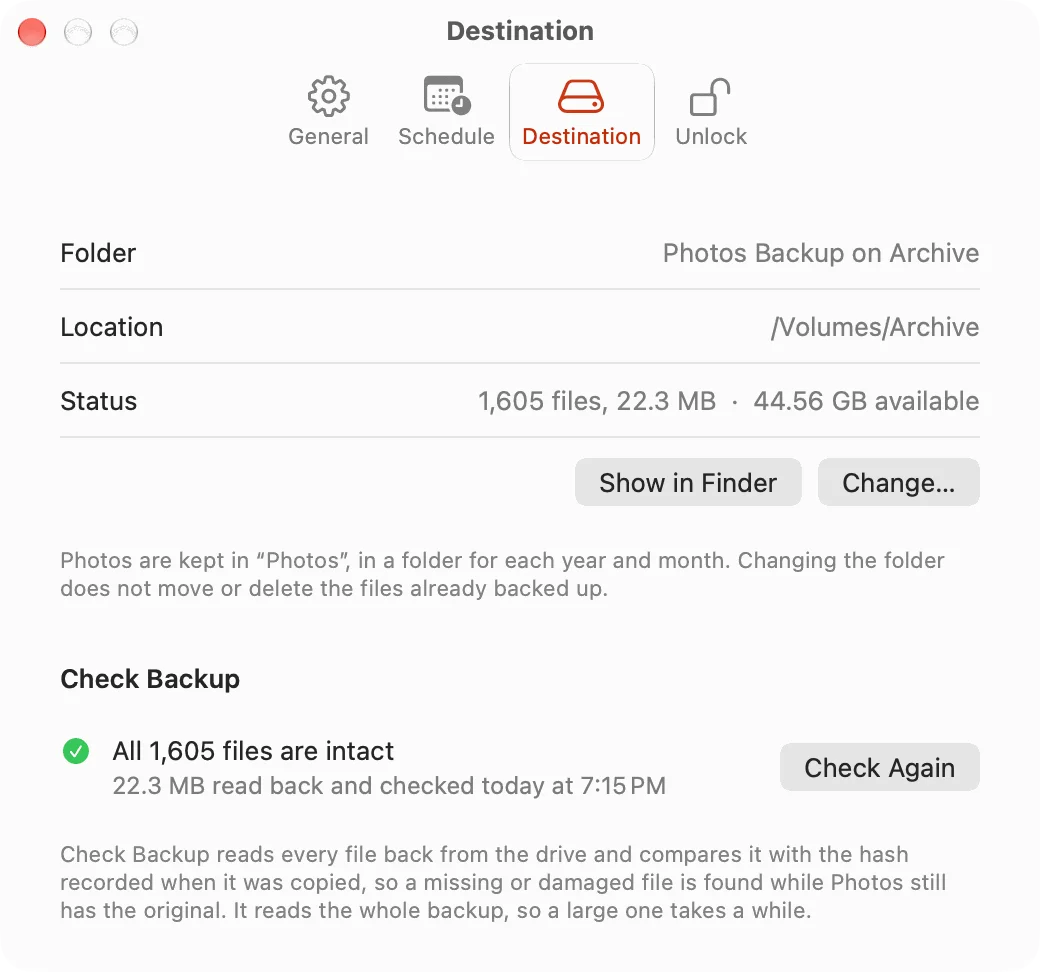
Drives can fail quietly, months later. Check Backup (File menu, or Settings › Destination) reads every backed-up file back from the drive and compares it with its recorded hash, with progress and time left. It names each kind of problem (missing, wrong size, damaged, no hash yet) and offers Copy Them Again, which the next backup does while Photos still has the original. Files copied by an earlier build, which recorded no hash, are copied once more so they reach the same standard.
What does Hardcopy keep, and what can't it keep?
Hardcopy reads your library through the Mac's Photos app, the way macOS lets apps do it. That decides what it can copy. Here is the full list, so nothing surprises you later.
| Part of a photo or video | In the backup? | Where |
|---|---|---|
| The original, exactly as shot | Yes | Its own file |
| The edited version, when you edited it | Yes | A second file, “(edited)” |
| The video half of a Live Photo | Yes | A .MOV beside the photo |
| The RAW alternate, when there is one | Yes | Its own file |
| Every frame of a burst | Yes | One file each |
| Edit data (how Photos edited it) | Yes | An .AAE file beside the photo, used when the item is restored |
| Files only Photos can use (adjustment bases, proxies, others) | Yes | The Restore Data/ folder, used when the item is restored |
| Hidden items | Yes, when Photos lets apps read them | Counted in Library, with a note if Photos keeps them locked |
| Date and time taken, location, favourite, hidden, albums | Yes | The .xmp file (favourite as a 5-star rating); albums also as folders |
| Caption, keywords and rating | macOS 27 only | The .xmp file |
| People and their names | No | macOS doesn't let apps read them |
| Shared Albums | No | Not backed up yet |
| iCloud Drive | No | Photos library only |
Edit data and the files only Photos can use were added in 1.1. A backup made by an earlier version gains them on its next run, for items still in your library, and a notice says how many items gained them. Items removed by 1.0.0 had no edit data kept, and Activity says once per backup folder how many edited items that affects.
How is the backup laid out on the drive?
As ordinary folders and files that any computer can open, with no app needed to read them:
<the folder you chose>/
  Photos/
    2026/
      11/
        IMG_4021.HEIC
        IMG_4021.HEIC.xmp           (its details)
        IMG_4021 (edited).jpg
        IMG_4021.AAE                (edit data: how Photos edited it)
        IMG_4022.HEIC
        IMG_4022.MOV                (Live Photo video)
    Undated/                        (items with no date)
  Restore Data/                     (files only Photos can use)
    2026/
      11/
        IMG_4021 (adjustment base photo).HEIC
  Albums/
    Trips/                          (a folder of albums in Photos)
      Iceland/                      (an album)
        IMG_4021.HEIC               (the same file, no extra space)
  Hardcopy Receipts/
    Removed from iCloud 2026-11-17 14.05.csv
    Restored to Photos 2026-11-24 09.30.csv
.hardcopy/ (the backup's own record, hidden)- Edit data beside the photo.
IMG_4021.AAEsits next toIMG_4021.HEIC, the way other photo tools expect it. Files only Photos can use go inRestore Data/, which mirrors the year and month folders, so they never show up as duplicates. Album folders link only files you can open. - Year and month folders, with the file names Photos gives them. Two different files with the same name get “ (2)”, “ (3)”, and keep that name on every later run.
- Dated by when the photo was taken. Each file, and its .xmp file, gets the photo's date as its creation and modification date, so Finder sorts it sensibly.
- Details beside each photo. The .xmp sidecar holds the date and time taken, the location, favourite, hidden and its albums (and on macOS 27 its caption, keywords and rating). When you favourite a photo or add it to an album, the next backup rewrites only its .xmp file and album folders, without copying the photo again.
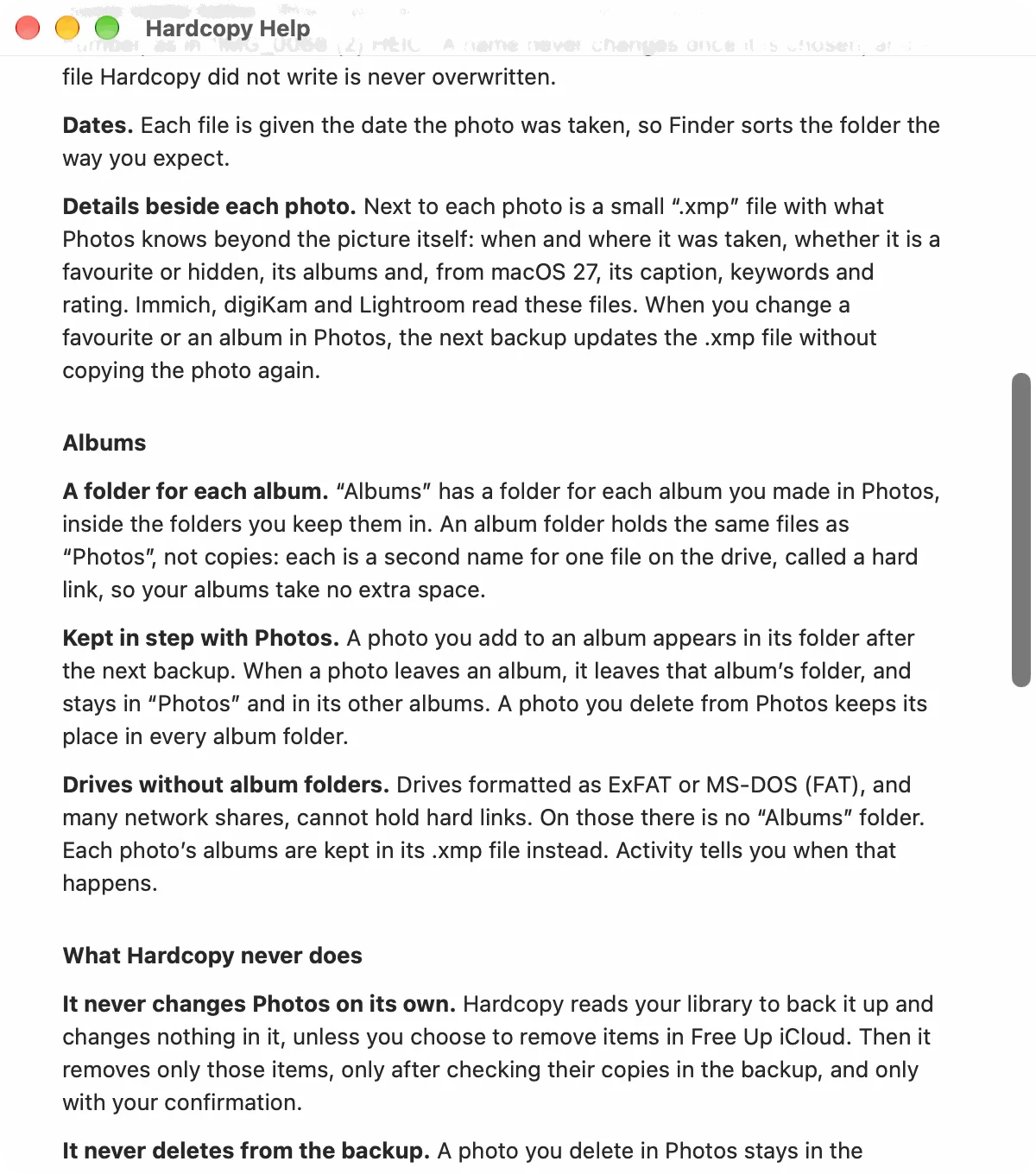
- Albums as folders, at no extra space. Each album folder holds hard links: second names for the same files. When a photo leaves an album, it leaves that album's folder; the photo itself is never touched. Drives that can't hold hard links (ExFAT, MS-DOS (FAT), many network shares) get no
Albums/folder; Activity says so, and the album names are in the .xmp files. - Its own record.
.hardcopy/manifest.sqlitelets you continue the backup from another Mac, and it survives the library forgetting an item.
How does Hardcopy remove photos from iCloud?
In five steps, in the Free Up iCloud section. Nothing is removed unless you start it, tick every warning and allow it in macOS's own confirmation.
1. Check
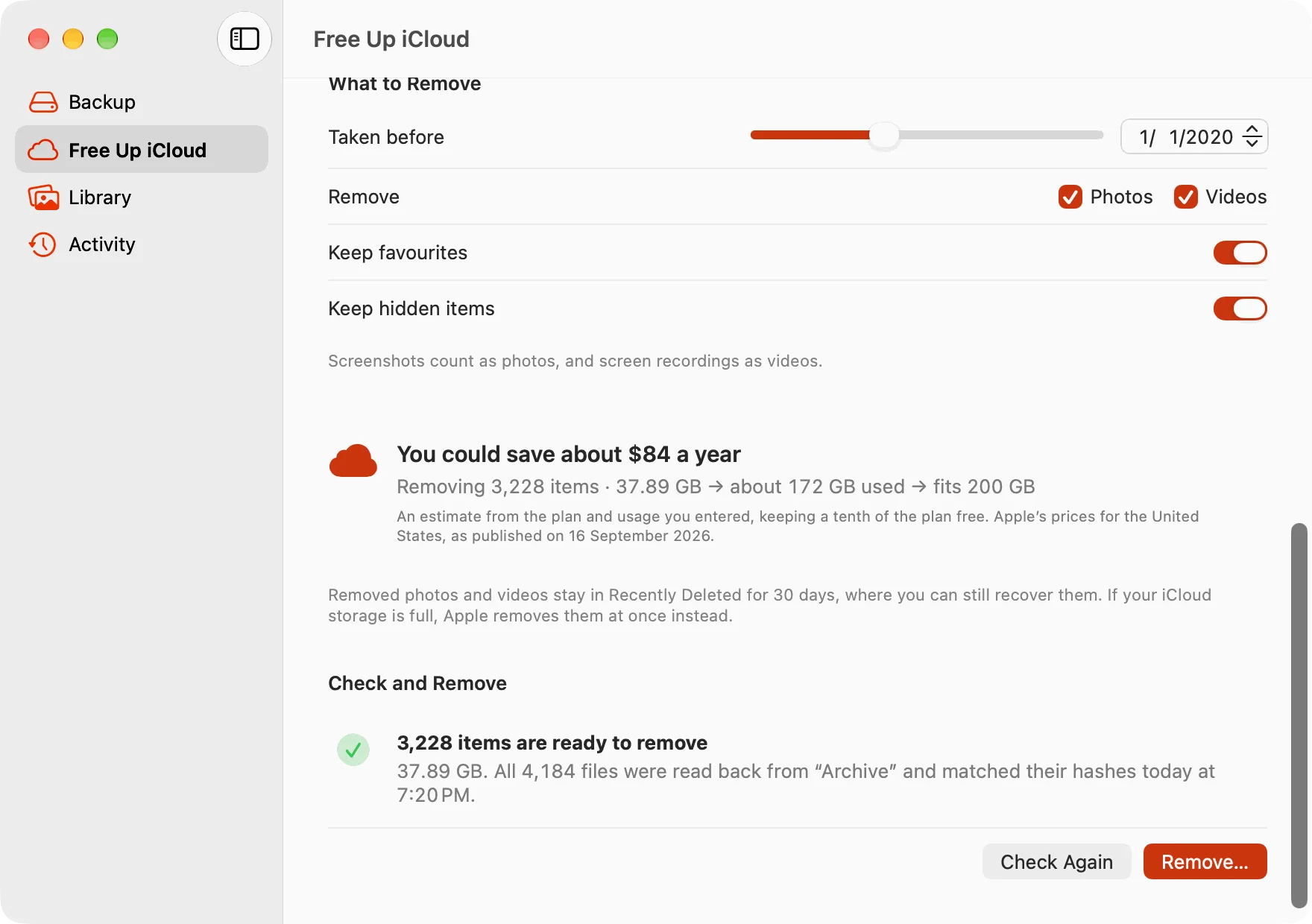
Hardcopy lists the library afresh and reads back every file of every matching item from the drive, comparing each with its hash. It then says how many items are ready to remove, and for the rest, why not: backup drive not connected, backup is in a cloud folder (for example "Backup is in Google Drive", which holds back every item), not backed up yet, edit data not backed up yet, a file didn't copy, edited since the backup, copy not proven yet, copy damaged or missing. Each reason says what makes those items ready. Items with no date are never removed.
2. Confirm
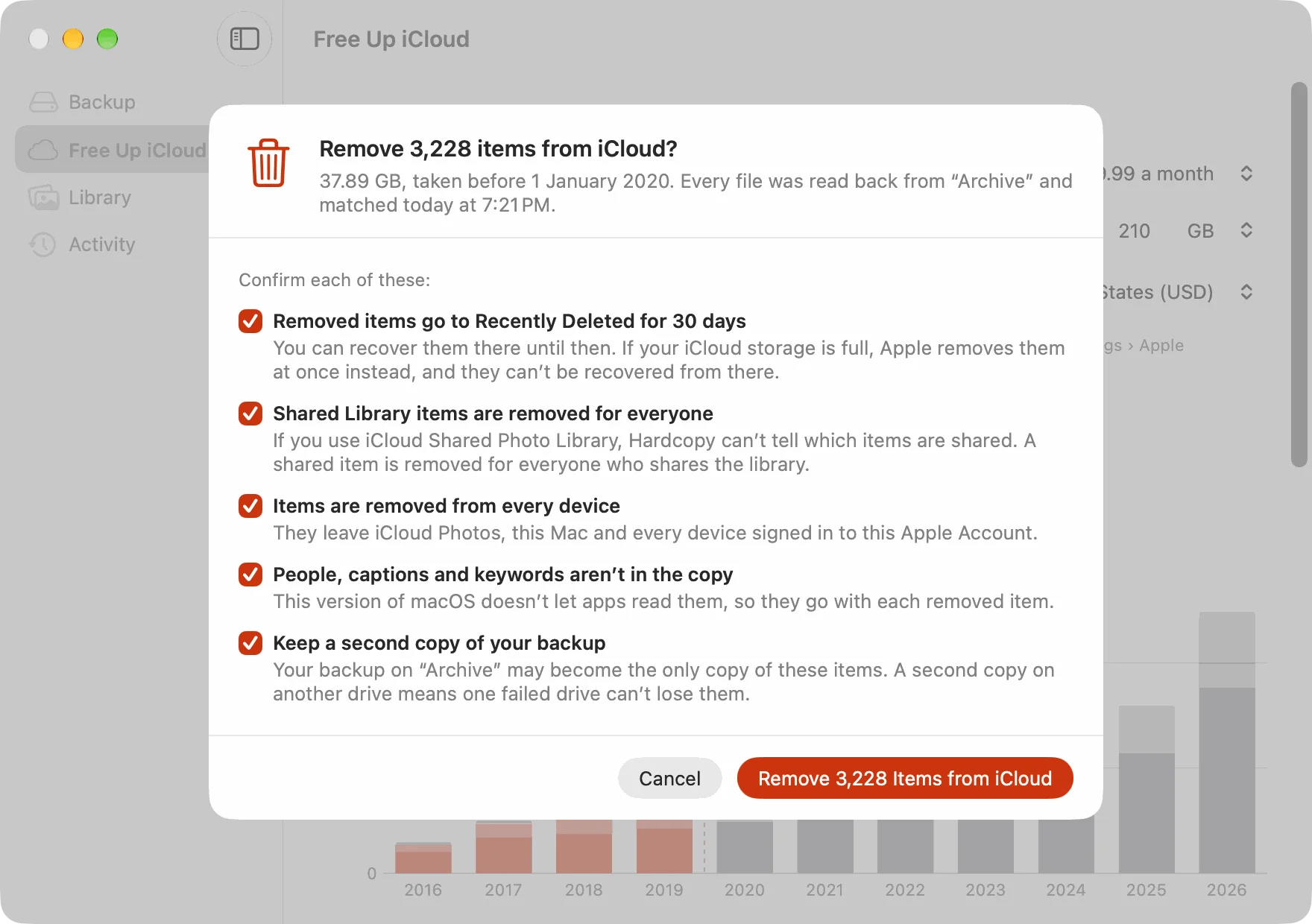
A sheet lists five points. Each is a checkbox that must be ticked before the button is enabled, and every box starts unticked each time:
- “Removed items go to Recently Deleted for 30 days”
“You can recover them there until then. If your iCloud storage is full, Apple removes them at once instead, and they can't be recovered from there.” When the usage you entered is at least your plan's size, this point becomes, in red, “There is no undo: your iCloud storage is full”. - “Shared Library items are removed for everyone”
“If you use iCloud Shared Photo Library, Hardcopy can't tell which items are shared. A shared item is removed for everyone who shares the library.” - “Items are removed from every device”
“They leave iCloud Photos, this Mac and every device signed in to this Apple Account.” - “People, captions and keywords aren't in the copy” (macOS 15 to 26), or on macOS 27
“People and their names aren't in the copy”
macOS doesn't let apps read them, so they go with each removed item. - “Keep a second copy of your backup”
“Your backup on “your drive” may become the only copy of these items. A second copy on another drive means one failed drive can't lose them.” If the backup is on the Mac's own disk, the sheet says so.
The button names the exact count, for example “Remove 3,228 Items from iCloud”.
The first point rests on the iCloud support article. Removed photos and videos stay in Recently Deleted for 30 days, and “Items in Recently Deleted don't count towards your iCloud storage”; but “if you exceed your iCloud storage limit, your device immediately removes any photos and videos you delete and they won't be available for recovery in your Recently Deleted album” (support.apple.com/108922, published 14 September 2026, read 17 November 2026).
3. Remove
- Oldest first, in batches of at most 500.
- Looked at again before each batch. Every file must still be there at the same size, and the backup's record must be exactly what was checked. Any difference stops the removal before that batch.
- macOS asks you too. Each batch goes through macOS's own confirmation. Choosing “Don't Allow” stops there.
- Stop means stop. Stop finishes the batch under way and removes nothing after it.
- It can't freeze. If Photos doesn't answer for 2 minutes, the screen says so and offers Stop Waiting; after 15 minutes Hardcopy stops waiting by itself. Nothing is assumed removed: Hardcopy asks the library which items are gone and puts only those in the receipt. If Photos removes the rest later, they are added to the same receipt.
- Changed items stay. Items edited, favourited or hidden in Photos since the check stay in iCloud.
4. Receipt
Hardcopy writes Hardcopy Receipts/Removed from iCloud <date time>.csv in the backup folder. It is written as each batch completes
and pushed to the drive before the next batch starts. One row per removed item, with these columns:
Date taken, Type, Files in backup, SHA-256, Size (bytes), Removed at, Photos ID
Dates are ISO 8601 with the time zone offset. When an item has several files (a Live Photo, or an original and its edit), their paths and hashes are listed in the same order, separated by “ | ”. The file is UTF-8 with a byte order mark, so Numbers and Excel open it correctly, and a receipt is never overwritten. Here is what one looks like:
| Date taken | Type | Files in backup | SHA-256 | Size (bytes) | Removed at | Photos ID |
|---|---|---|---|---|---|---|
| 2016-07-09T18:42:11+01:00 | Photo | Photos/2016/07/IMG_0412.HEIC | Photos/2016/07/IMG_0412.MOV | 5a9e74ce…91d6be47 | ab15df2e…287fc737 | 4817305 | 2026-11-17T19:23:40+00:00 | F75D0F00-F9CF-4093-B864-EAA3CECB9C50/L0/001 |
| 2017-03-22T08:15:03+00:00 | Video | Photos/2017/03/IMG_0587.MOV | 37f6b726…2d787d0d | 48213977 | 2026-11-17T19:23:40+00:00 | 8252B1D7-DECE-45D1-AF1C-4B8A26A70DBE/L0/001 |
| 2018-12-24T16:05:29+00:00 | Photo | Photos/2018/12/IMG_0603.JPG | Photos/2018/12/IMG_0603 (edited).jpg | a258e38d…db448e1b | 4d328b38…faa5ee2e | 5274116 | 2026-11-17T19:23:40+00:00 | E20CD849-7E42-4B60-B0CD-CEE6A67829DF/L0/001 |
| 2019-05-30T12:31:56+01:00 | Photo | Photos/2019/05/IMG_0651.HEIC | 5d2995d1…8919fabd | 2391840 | 2026-11-17T19:23:40+00:00 | 81E2AC3B-857E-4442-931B-160679B2BA23/L0/001 |
5. Afterwards
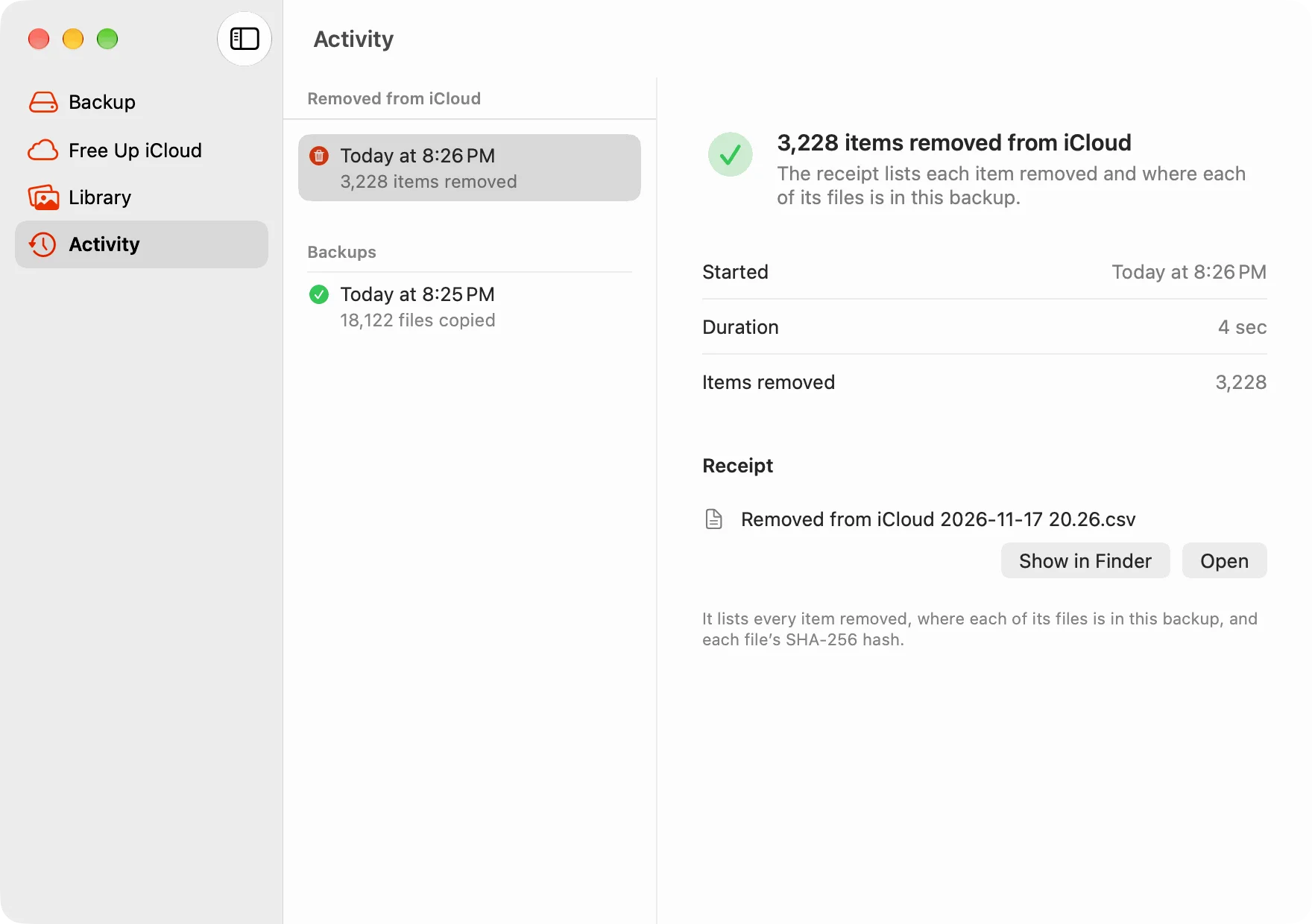
The end screen gives the count and size removed, what is still in iCloud and why, the receipt (Show in Finder, Open) and the Recently Deleted note. Activity lists every removal with its receipt, so you can always find where a removed photo's copy is, and each removal offers Restore… to put its items back into Photos.
How do I put photos back into Photos?
With Restore, a section in the sidebar (Command-3). It lists what is in your backup but no longer in Photos, whether Hardcopy removed it or you deleted it in Photos, by month, with thumbnails and filters for date, photos or videos, album and source. Each removal in Activity also offers Restore… for its items. Restore needs full Photos access.
- Choose the items and confirm. Nothing goes back until you do.
- Every file is checked first. Hardcopy reads each file it will hand to Photos back from the drive and compares it with its SHA-256 hash; only files that match go to Photos.
- Each item goes back whole, as a new item: its original, edit, Live Photo video, RAW, date, place, favourite, hidden state and albums, and on macOS 27 its caption, keywords and rating.
- A restore record is written,
Hardcopy Receipts/Restored to Photos <date time>.csv, listing every item, the files used, their hashes, the result and the identifier Photos gave it. - Nothing is removed from the backup. The next backup recognises restored items and doesn't copy them again.
A restored edit comes back with its edit data, so in Photos you should still be able to change it or revert to the original; we have not yet checked this on a real library.
Worth knowing before you restore: a restored item is new to Photos, so it uploads to iCloud again and counts towards your storage. Items removed by 1.0.0, which kept no edit data, come back as their edited version only (a plain restore), and the original stays in the backup. People, burst grouping and titles are not restored, items still in your library are not offered, and Restore puts items only into your own library, not a Shared Library. Restore has been tested with the demo library and automated tests, not yet on a real library.
What safety rules does Hardcopy follow?
- Nothing changes in your library unless you ask. Hardcopy reads your library to back it up and changes nothing in it, unless you choose to remove items in Free Up iCloud, or to restore items from the backup. A removal takes only the items you chose, only after checking their copies, and only with your confirmation and macOS's. A restore adds only the items you chose, as new items, only after every file it hands to Photos matches its hash, and only with your confirmation.
- Nothing is removed on a stale record. An item is removed only if every file the library has for it is in the backup, was proven against what Photos handed over, is unchanged since it was copied, and passed the removal check in this session.
- It never deletes from the backup. A photo removed from Photos keeps its files, its .xmp file and its album folders. A restore removes nothing from the backup either.
- No partial files. Each file is written under a temporary name and moved into place only when complete and checked.
- Resumable. Quit, sleep or unplug the drive at any point; the next run continues without copying finished files again.
- No silent failure. Every file that couldn't be copied is listed with the reason and what to do about it.
- A receipt for every removal, in the backup folder, written as each batch completes, and a restore record for every restore.
Does anything leave my Mac?
Your photos don't. They go from Photos to the drive you chose. There is no account and no Hardcopy server that sees your library. The only network traffic Hardcopy itself makes is:
- the licence activation, and a weekly re-check of the licence;
- update checks, if you allow them (or when you choose Check for Updates…).
A diagnostic report never leaves by itself: it goes to your clipboard, and you decide whether to email it (see below).
Photos itself downloads originals from iCloud when the Mac holds only small versions, as it would for any app that reads them.
How do I send a diagnostic report?
Choose Help › Copy Diagnostic Report. Hardcopy puts plain text on your clipboard: its version, your Mac and drive, Photos access, recent backups, removals and restores with counts and reason codes, and the error codes of this launch. It never holds file names, folder or drive names, album titles, item identifiers, locations, captions, keywords, your licence key or your email address. The app sends it nowhere: paste it into an email to harsh@sonealabs.com if you want help, and read it first if you like.
Can I import the backup into Immich, digiKam or Lightroom?
The files are standard photos and videos, so all three can import them, and all three read XMP sidecar files. Each sidecar sits beside its photo
with the photo's full name plus .xmp, such as IMG_4021.HEIC.xmp beside IMG_4021.HEIC, which is the naming
Immich looks for. Immich reads .xmp sidecars
(Immich documentation), so an Immich import should bring in the dates, locations,
favourites and album names Hardcopy writes there. We haven't yet tested an Immich import of a Hardcopy backup, so treat this as how it should work,
not a promise.
Does it work with Advanced Data Protection?
Hardcopy reads through the Mac's Photos app, so it should work with Advanced Data Protection, with nothing extra to turn on. It never signs in to iCloud itself; Photos hands it the files. We haven't tested it on an account with Advanced Data Protection turned on yet.
What doesn't Hardcopy do?
- Restore puts back only items that are no longer in your library, only into your own library (not a Shared Library or another library), and not people, burst grouping or titles.
- Items removed by 1.0.0, which kept no edit data, restore as their edited version only; the original stays in the backup.
- No Shared Albums, no iCloud Drive.
- No cloud destinations, no several destinations at once, no mirror mode, no encryption.
- It won't keep the backup in iCloud Drive (including Desktop and Documents when iCloud Drive keeps them), because the backup would take up the iCloud storage you are trying to free. A folder that Google Drive, Dropbox, OneDrive or Box syncs can hold the backup, but Free Up iCloud stays off for it: Hardcopy can check only the copy on this Mac, not what the cloud holds.
- It can't tell Shared Library items from personal ones; macOS offers apps no way to (developer forums, June 2026).
- It can't read your iCloud plan or usage; you type them in.
- No duplicate finding.
- English only. No iPhone or iPad app, nothing before macOS 15. It runs on Apple silicon and Intel Macs, but macOS 26 is the last macOS for Intel, so on an Intel Mac the macOS 27 extras (captions, keywords and ratings) never appear.
What does it cost?
$14.99, paid once, with any tax added at checkout (₹999 plus GST in India). No subscription, no account. The first buyers get lower early-bird prices, and the first 10 pay nothing. One licence covers up to 3 Macs with all future updates, and there is a 30-day refund, no questions. Hardcopy needs a licence key to back up or remove anything; if it is not right for you, the refund covers you.
Where to go next
- How to free up iCloud storage and drop to a cheaper plan
- How to back up iCloud Photos to an external drive on a Mac
- How to back up iCloud Photos with Optimize Mac Storage on
- How to delete photos from iCloud but keep them
- How to check your photo backup is complete before you delete from iCloud
- Why is iCloud storage still full after deleting photos?
- The best ways to back up iCloud Photos on a Mac, compared
- iCloud storage calculator
- Every question, answered
- Comparisons: Hardcopy vs Parachute Backup, Hardcopy vs Photos Backup Anywhere, Hardcopy vs icloudpd, Hardcopy vs Photos Takeout
- Hardcopy home: the savings calculator and prices
Questions people ask
What is a SHA-256 hash?
A 64-character fingerprint calculated from every byte of a file. Change a single byte and the fingerprint changes completely. Hardcopy takes one while Photos hands a file over and another after reading the file back from your drive; if the two match, the copy is exact.
Does Hardcopy upload my photos anywhere?
No. Your photos go only to the drive you choose. Nothing else leaves the Mac except the licence activation, a weekly re-check of the licence, and update checks; a diagnostic report goes only to your clipboard. It never asks for your iCloud password. Photos itself downloads originals from iCloud when the Mac holds only small versions.
What happens if I unplug the drive during a backup?
It is built so that nothing is lost: each file is written under a temporary name and moved into place only when it is complete and checked, so there are no half-written files, and the next run carries on without copying finished files again. We have not yet tested unplugging mid-run on a real drive.
Does Hardcopy ever delete files from my backup?
No. A photo removed from Photos keeps its files, its .xmp file and its album folders, and a restore removes nothing from the backup either. The one thing Hardcopy takes away is a photo’s second name in an album folder when the photo leaves that album, and only when that name is a hard link to the same file.
Can I stop a removal halfway through?
Yes. Stop finishes the batch under way and removes nothing after it, and choosing Don’t Allow in macOS’s confirmation stops there too. Every item that was removed is in the receipt, which is written as each batch completes.
What happens if a removal gets stuck?
If Photos doesn't answer for 2 minutes, Free Up iCloud says so and offers Stop Waiting; after 15 minutes Hardcopy stops waiting by itself. Nothing is assumed removed: Hardcopy asks the library which items are gone and puts only those in the receipt. If Photos removes the rest later, they are added to the same receipt.
Can I get a removed photo back?
Restore (Command-3) lists what is in the backup but no longer in Photos, whether Hardcopy removed it or you deleted it; each removal in Activity also offers Restore… for its items. Hardcopy checks every file against its hash, then puts each item back as a new item with its original, edit, Live Photo video, RAW, date, place, favourite, hidden state and albums (caption, keywords and rating too on macOS 27). It writes a restore record in Hardcopy Receipts and removes nothing from the backup. Restored items upload to iCloud again, and items removed by version 1.0.0, which kept no edit data, come back as their edited version only.
Can I open the receipt in Numbers or Excel?
Yes. The receipt is a CSV file saved as UTF-8 with a byte order mark, so Numbers and Excel open it with names and dates intact. It sits in Hardcopy Receipts inside your backup folder and is never overwritten.
What if I change a photo after the check?
It stays in iCloud. Items edited, favourited or hidden in Photos since the check are left alone, and before each batch every file is looked at again; any difference from what was checked stops the removal before that batch.